Session warm-up
What is warm-up in Linken Sphere
Warm-up is an automatic feature in the Linken Sphere browser designed to prepare a session for working with target sites. It mimics the behavior of a regular user: it visits websites that are popular in the region of the specified proxy/connection, automatically visits websites from a list (generated automatically or specified by the user), including deep browsing of these websites (according to the warm-up settings), and performs actions similar to real human activity on the Internet.
invisible text for space
The purpose of warming up is to give anti-bot systems the impression that you are a live user, not a bot. This reduces the risk of blocking, suspicion, and captchas during subsequent work.
How warm-up works
Linken Sphere launches a special algorithm that opens a list of popular sites (including Google, YouTube, etc.), collects cookies, and generates history.
Warm-up works without user involvement — everything happens automatically.
invisible text for space
During the warm-up process, the following are created and saved:
Cookies;
LocalStorage;
Visit history;
And other data that websites from the list interact with
Warm-up timer - what it means
During the warm-up, you will see a timer. It shows the estimated completion time - an approximate estimate of when the process may end.
invisible text for space
However, it is important to understand:
Warm-up may end earlier or later than the specified time - this is normal.
The duration depends on many factors, including the performance of websites and proxies.
A change in warm-up time does not indicate an error and does not affect the quality of the result.

What determines the quality of warm-up
Key factors affecting the effectiveness of warm-up and the number of cookies collected:
invisible text for space
Proxy quality and purity:
Fast, stable, and "clean" proxies (which do not arouse suspicion on websites and do not trigger captchas) allow you to load more websites and collect data more efficiently.
If proxies are "exposed" or frequently trigger captchas, the number of cookies collected may be significantly lower.
Captchas:
Captchas may appear on some websites. If they pop up too often, warm-up slows down and data collection becomes more difficult.
Website features:
Some websites require mandatory acceptance of Cookie Consent.
Conclusion
Warming up is an important step in preparing a session for work. It makes the browser's behavior more natural, reduces suspicion from anti-bot systems, and allows you to start working with the most "live" session possible.
Cases
How to warm up a single session
Creating a new session
Click the "Create Session" button.
Enter a name (for example, "Test Session").
Select the connection type, for example, FreeProxy.
Check the connection - after that, the language, time zone, and geolocation parameters will be automatically substituted.
invisible text for space
Warm-up settings
Open the context menu for the session and select "Warm-up."
Fill in the fields:
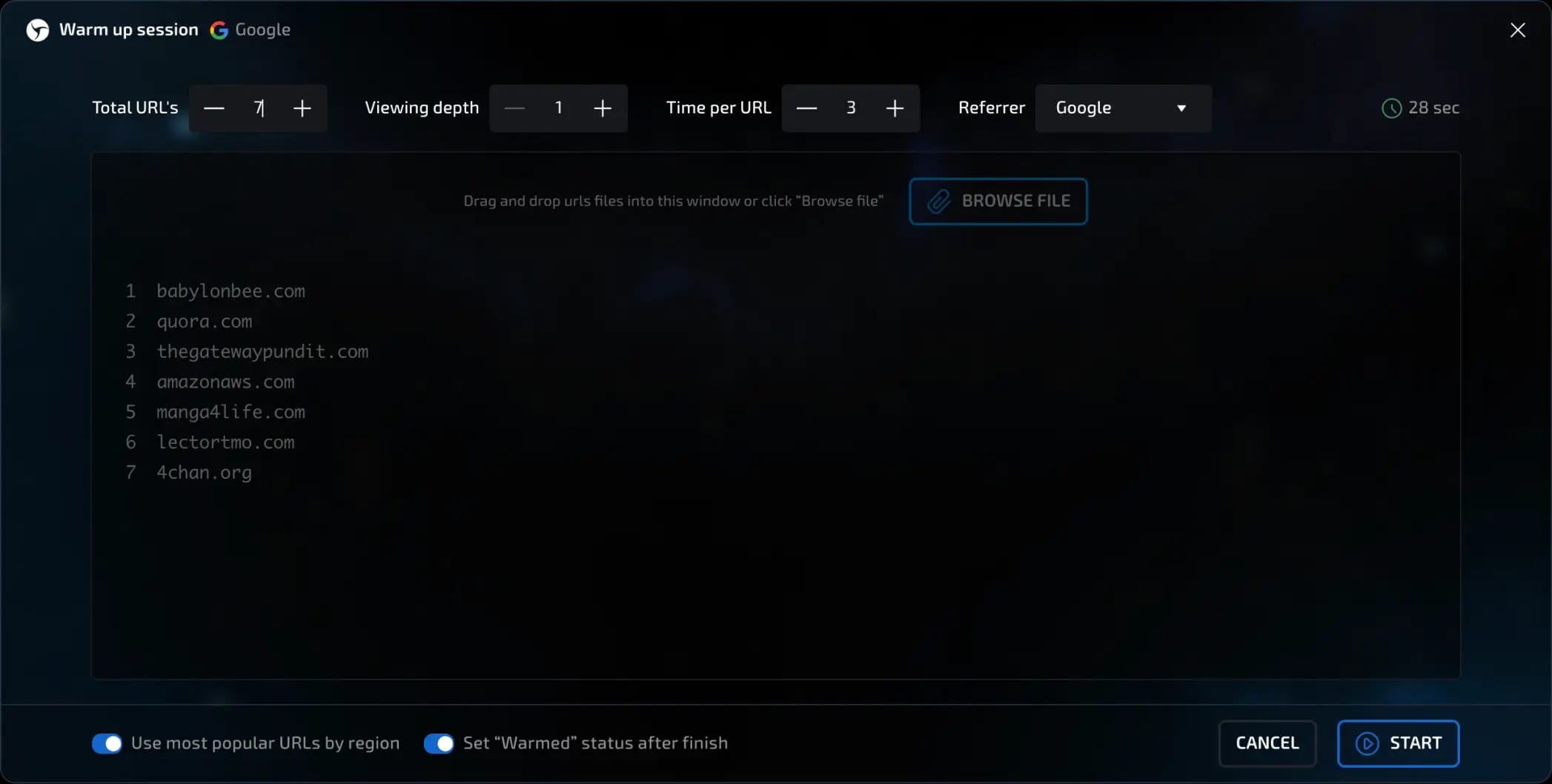
Number of sites - how many addresses will be visited (for example, 5).
Viewing depth - how many pages will be opened on each site (e.g., 5).
Time on page - how many seconds the bot will "stay" on each page (e.g., 5 seconds).
Referrer - a transition indistinguishable from a real one from the selected search engine will be simulated.
Sites for warming up - by default, the list of sites for warming up is generated automatically. The most popular sites in the proxy/connection session location will be used. Alternatively, you can specify your own list (paste from the clipboard or from a .txt file).
invisible text for space
Start warming up
You can enable or disable the "Set Warmed status" checkbox after warming up.
Click 'Start'.
The session will go into "Warming up" status, and you will see the remaining time.
invisible text for space
Results
After warming up is complete, you can:
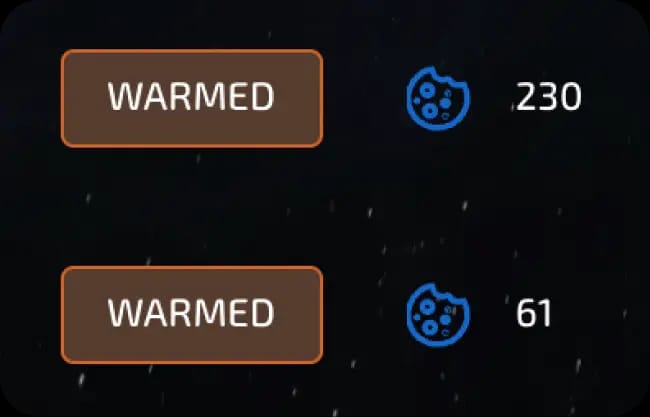
View the number of cookies collected.
Change the session status.
How to warm up multiple sessions at once
Creating a preset
Create a preset with the desired settings (connection, browser parameters, etc.).
Save it.
invisible text for space
Bulk session creation
Go to the "Bulk Creation" section.
Select the previously created preset.
Specify the number of sessions (for example, 10) and click "Create."
invisible text for space
Warm up all sessions
Select all created sessions.
Open the context menu at the bottom and select "Warm up."
Fill in the settings as described above.
If the sessions have different geolocations, the list of sites will be automatically selected for each of them.
Click "Start."
invisible text for space
Checking the results
After the warm-up is complete, open the 'Cookies' and "Status" columns.
You will see how many cookies each session has collected.
Previous page
Next page