Bulk session creation
What is bulk session creation?
Bulk creation is a feature that allows you to quickly create up to 100 sessions at once. This is especially useful if you need to deploy many sessions with identical or similar settings at once. All settings (connection, fingerprints, configuration, start pages, bookmarks, extensions, etc.) are automatically pulled from the selected preset.
Presets for mass creation
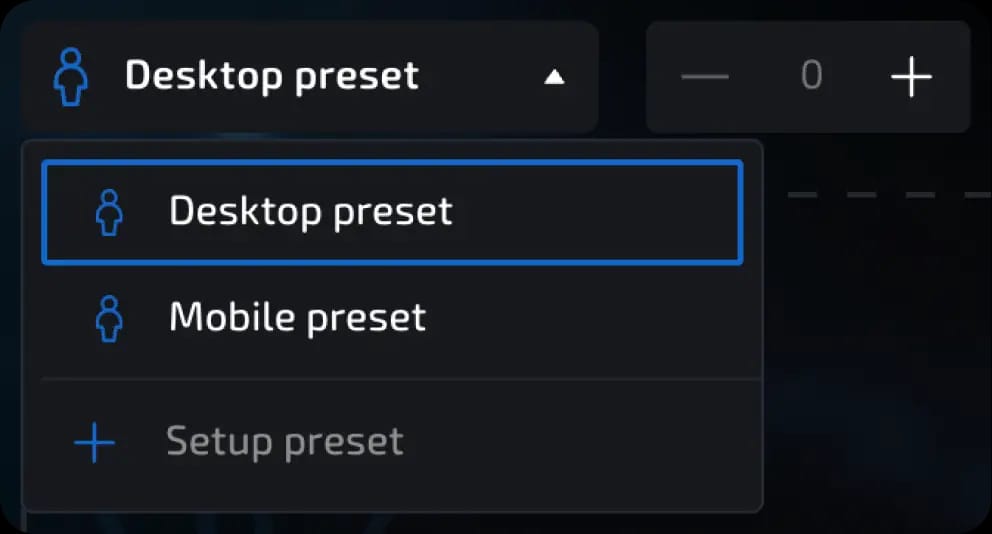
Before creating sessions, you need to select a preset—a set of predefined parameters. Available:
Ready-made presets: Desktop Preset, Mobile Preset
Your saved user presets
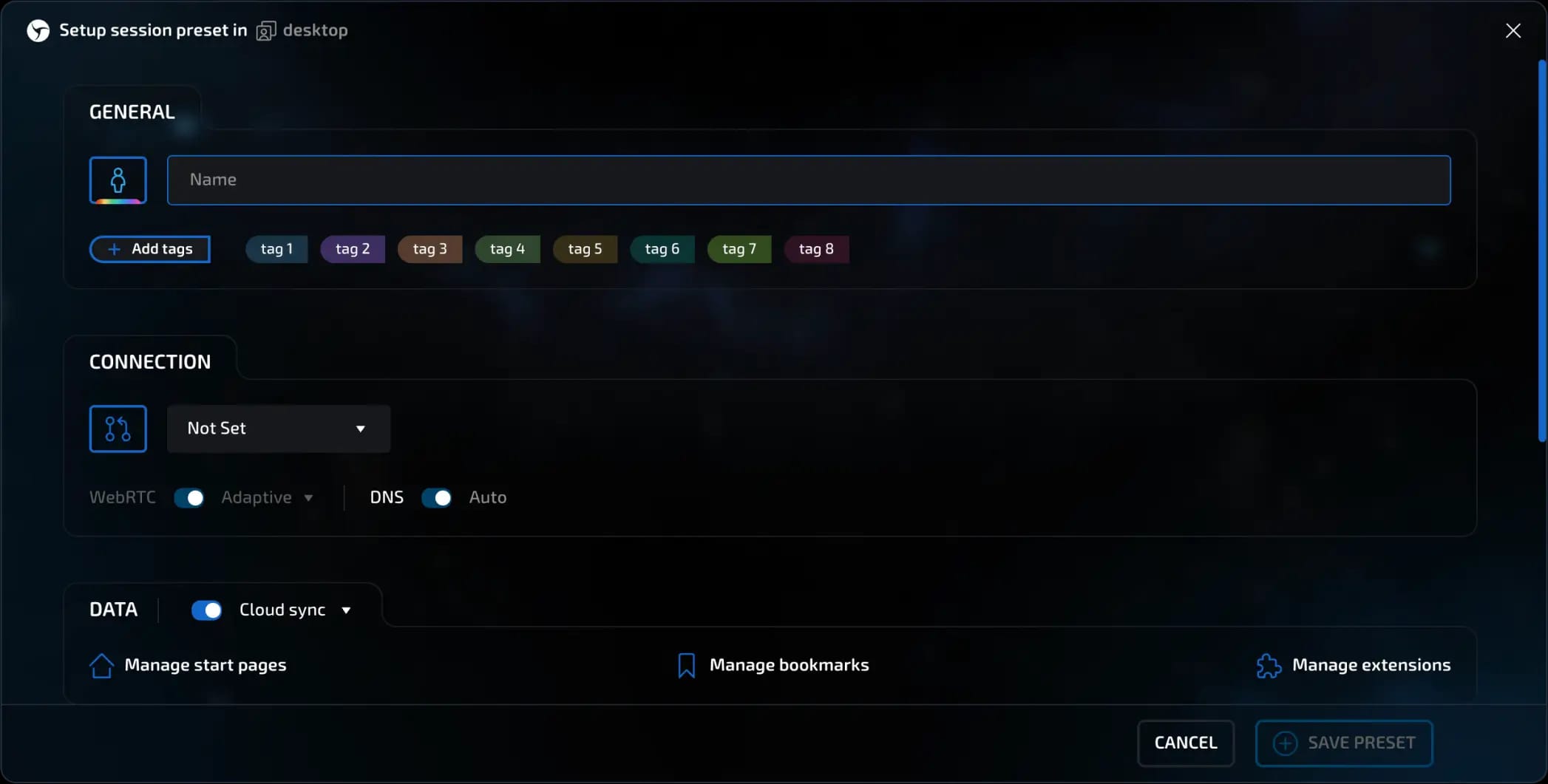
The ability to create a new preset directly in the creation window
All parameters (connection, fingerprints, configuration) will be loaded from the selected preset.
Creating empty sessions
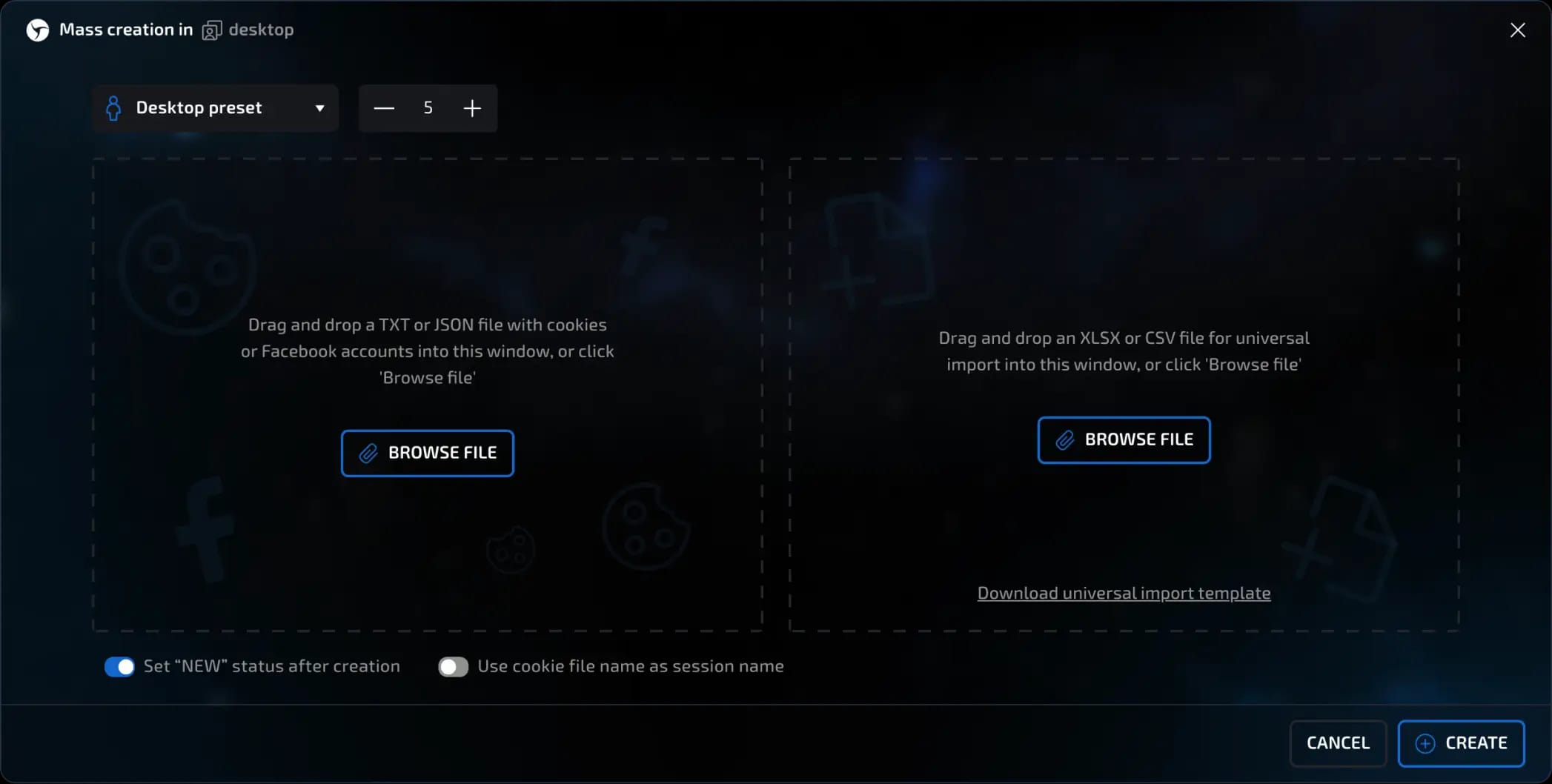
If you just need to create several clean sessions without importing data beforehand:
Open the bulk creation window.
Select the desired preset from the drop-down list.
Specify the number of sessions using the "+" / "-" buttons or manually.
Click the "Create" button - empty sessions will appear.
Universal session import
Universal import allows you to bulk upload sessions with individual parameters via a pre-prepared Excel (XLSX) or CSV file.
invisible text for space
The template includes:
a page to fill out - this is where you enter session data;
the second and third tabs - instructions for filling out the form in Russian and English, respectively.
The file can be filled out manually or automatically (for example, with scripts).
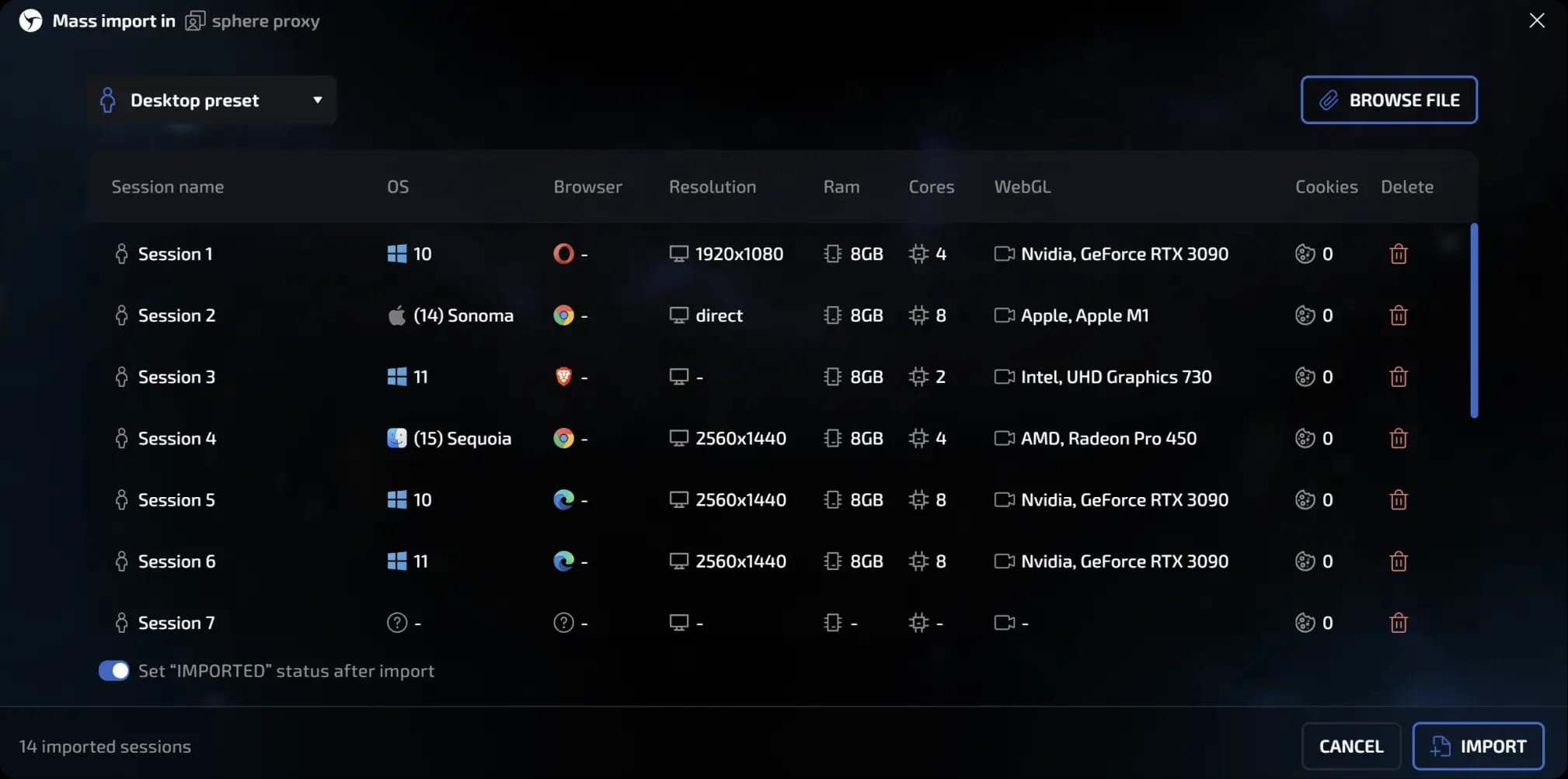
Data that can be specified in the template
All parameters are divided into logical blocks:
invisible text for space
Summary
Session name
Description
invisible text for space
Connection
Protocol: HTTP, SOCKS5, SSH, DIRECT, TOR, Localhost, Free proxy, Not set
IP address, port (depends on the selected connection type)
Login, password (depends on the selected connection type)
WebRTC mode
URL for changing IP
Custom DNS
invisible text for space
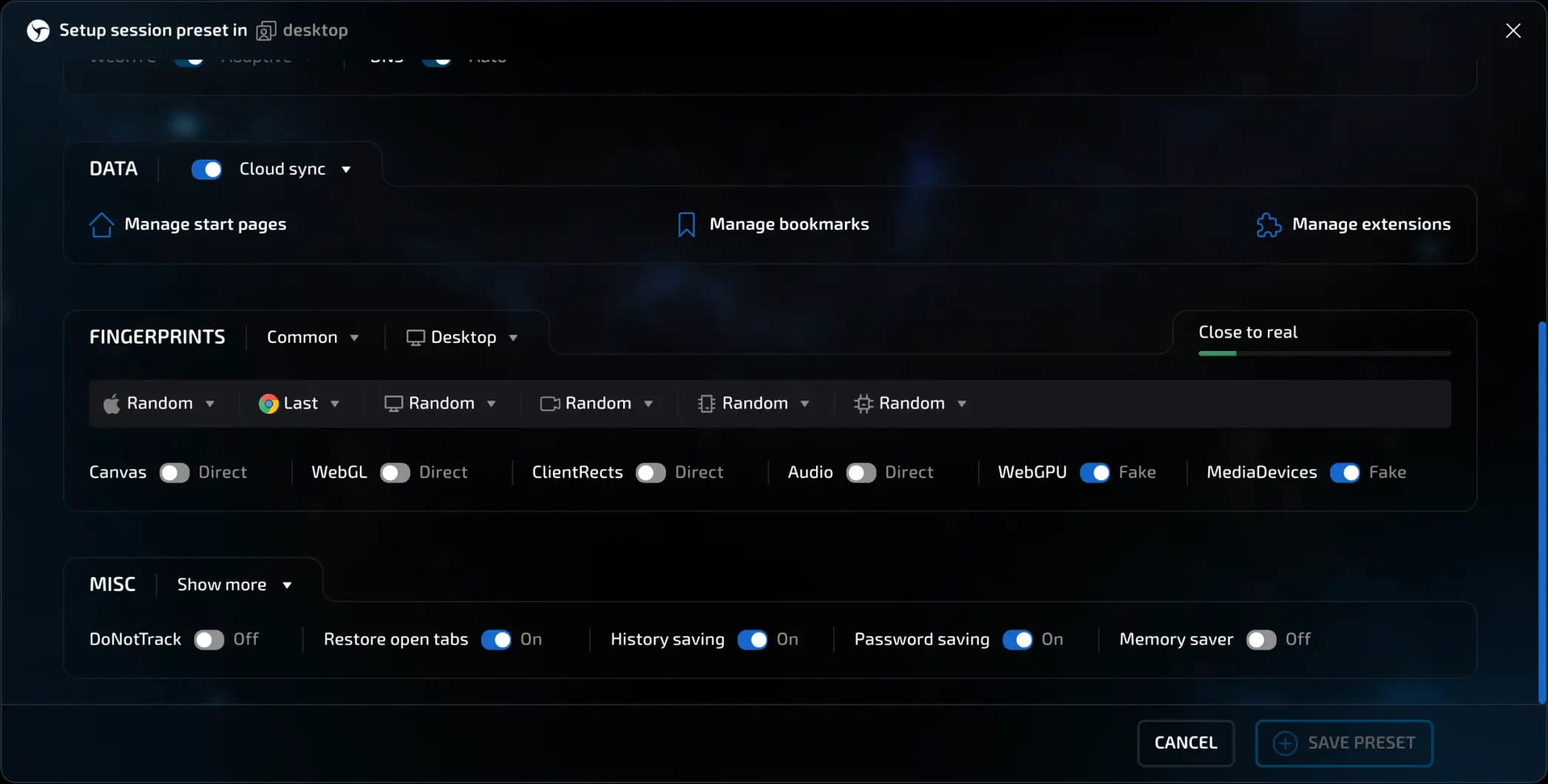
Config
Operating system and version in a separate field System version
Browser type
Number of processor cores
RAM capacity
Screen resolution
Video card (VideoAdapter)
invisible text for space
Noise
Canvas
WebGL
ClientRect
Audio
WebGPU
MediaDevices
invisible text for space
Data
Cookies (Netscape and JSON formats supported)
Passwords (logins and passwords for autofill in JSON format)
Import
Open the template.
Read the instructions (second or third tab).
Fill in the data on the input page.
Go to Linken Sphere
→bulk import section.Upload the completed file - all sessions will be automatically created with the specified parameters and data.
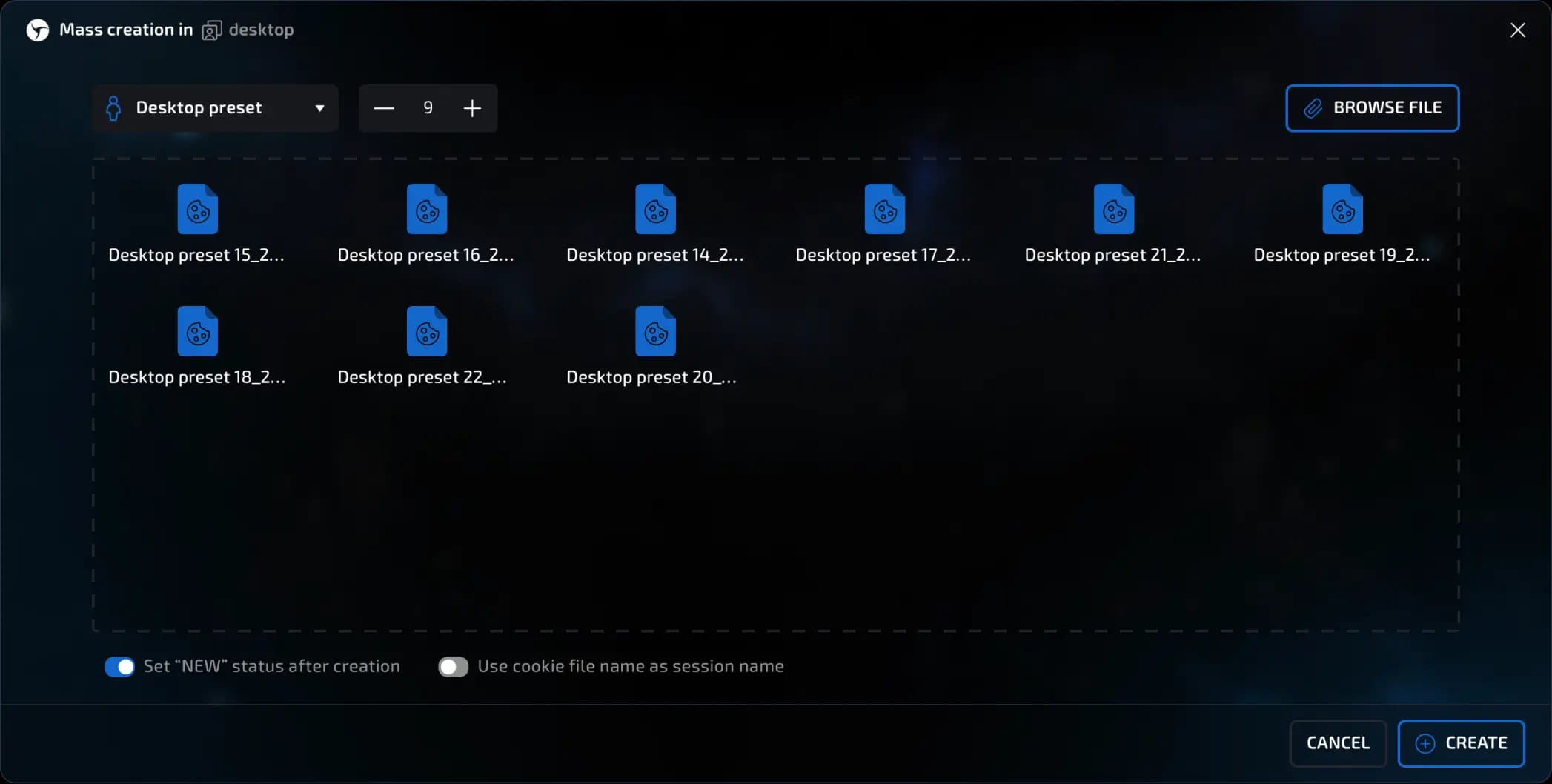
Bulk creation based on cookie files:
Open the bulk session creation wizard.
Select the desired preset.
The preset specifies the fingerprint, operating system, proxy, and other settings. You can choose a ready-made preset (e.g., Desktop/Mobile), your own preset, or create a new one.Click "Browse file / Выбрать файл in the window on the left."
Upload one or more files with cookies:using the "Select file" button;
by dragging the file into the program window;
After clicking the Create button in the lower right corner, the program will create sessions, each of which will receive its own cookies.
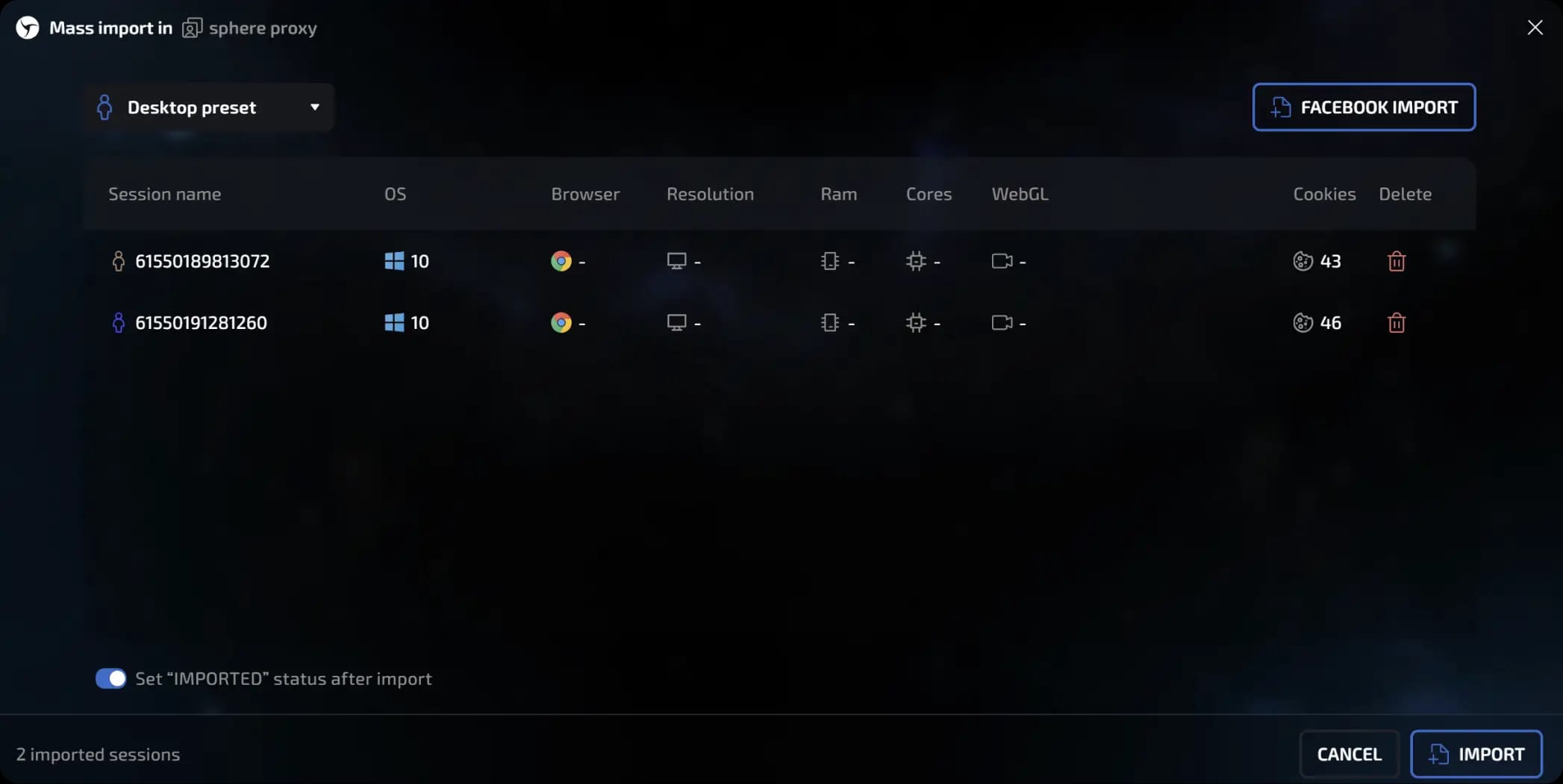
Importing Facebook accounts
Many common formats of purchased Facebook accounts are supported.
invisible text for space
When importing accounts in this way, the following will be automatically recognized:
Account name
Configuration (operating system + browser and version)
Cookies
invisible text for space
Various data:
Data for Facebook authorization (including ID, username, email, and password)
Data for email authorization
Token (if available)
Date of birth
The account creation date and other useful information will be structured and saved in a session note.
If the account format you are using is not yet supported, please contact our support team and we will add support for it in the next program update.
IMPORTANT!!!
Each cookie file will correspond to one session.
If one file with multiple cookies is uploaded, one session will be created with these cookies.
In the block below, there is a checkbox “Use cookie file name as session name,” which is active by default. Thus, when creating multiple sessions based on cookie files, the session names will correspond to the names of the cookie files used.
In the block below, there is a checkbox “Set status to 'New' after creation.” It is active by default. After creating sessions, they will automatically be assigned the status New.

Previous page
Next page